Adding Cards to a Hand
To add a card to the Selected Hand, click on one of the card buttons on the right side of the screen.
Removing Cards from a Hand
Just click the card to return it to the deck – the area to the right where the card buttons are. You may also remove a card by dragging and dropping it on the “deck”.
Moving Cards from one Hand to Another Hand
Use your mouse to drag a card from one hand and drop it on another. The top left corner of a card determines the location where the card is dropped. Dropping a card outside a hand area will cause it to be removed. Dragging and dropping can only be done with your mouse. The program will not let you have more than 14 cards in a hand at any one time, and of course you won't be able to "Play This Deal" if a hand has more than 14 cards.
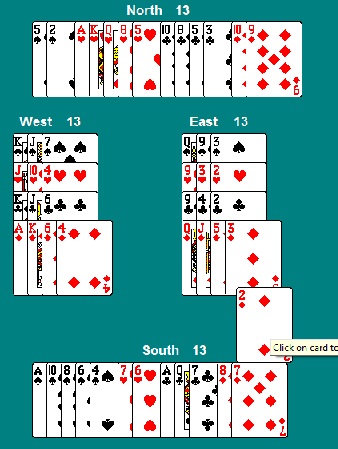
In the example below, the 2D is being dragged from the South hand to the East hand. Next I'll have to drag a card from East to South.